Hardware
Questions and answers for category hardware
Connecting and Configuring a Monitor
1. Check port compatibility on your computer and monitor
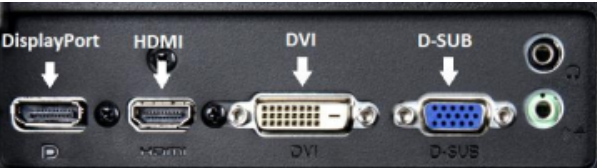
Check which ports your monitor and computer are equipped with, then find one that both devices have in common.
2. Find a cable to connect the monitor to the computer
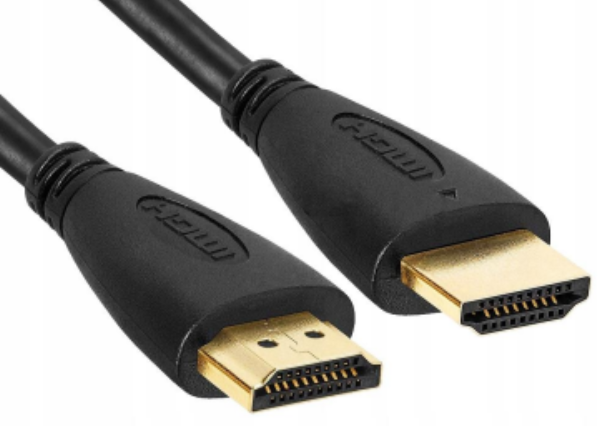
You’ll need a cable to connect the monitor to the computer. It should be long enough not to strain the connectors, with the same type of plug on both ends.
3. Device configuration instructions:
a.
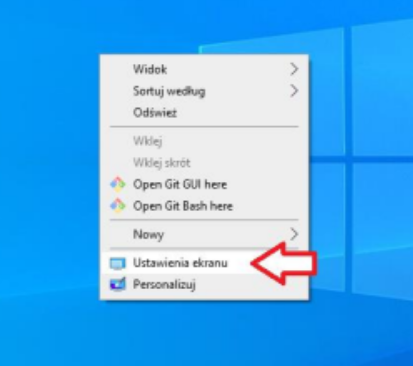
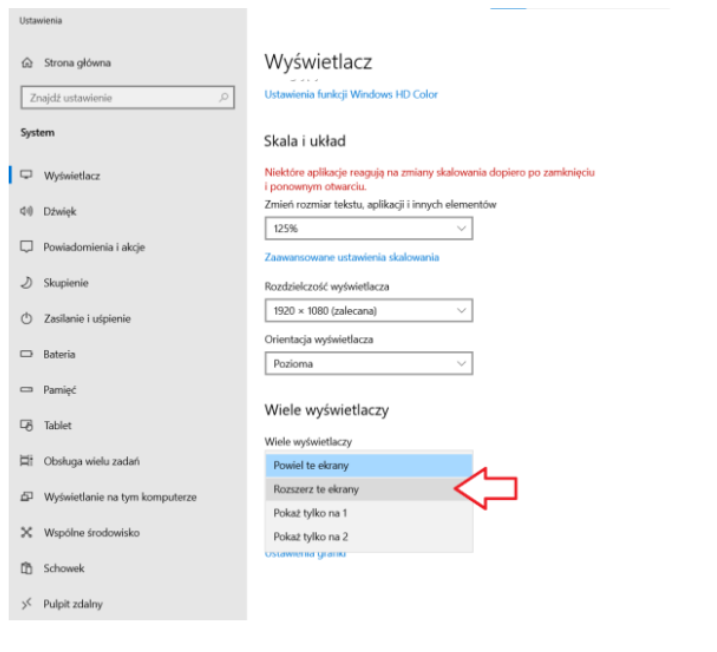
Right-click on the desktop background. A menu will open — select “Display settings”. You should then see the settings shown in the screenshot below.
b.
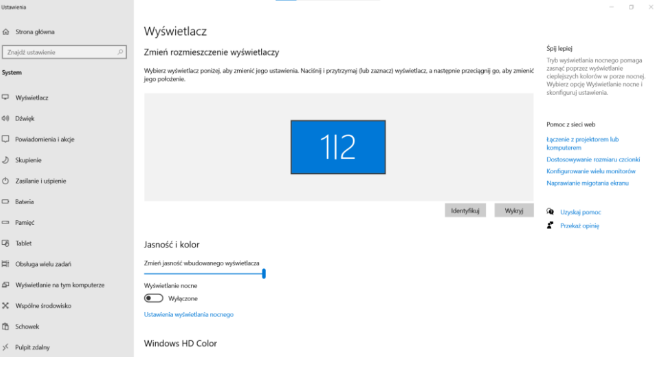
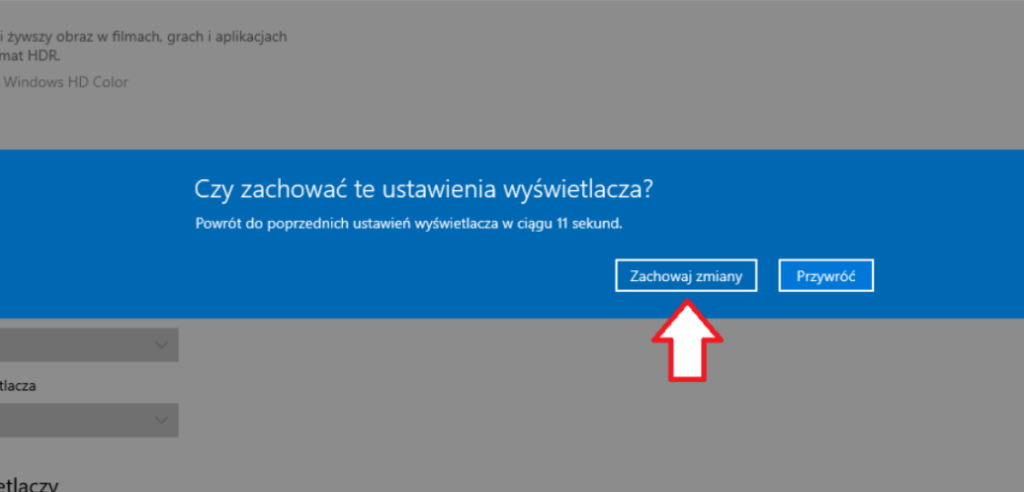
Scrolling down, go to the “Multiple displays” setting and choose the option that suits you — usually “Extend these displays”. This lets you show two or more independent windows across both monitors.
c.
4.
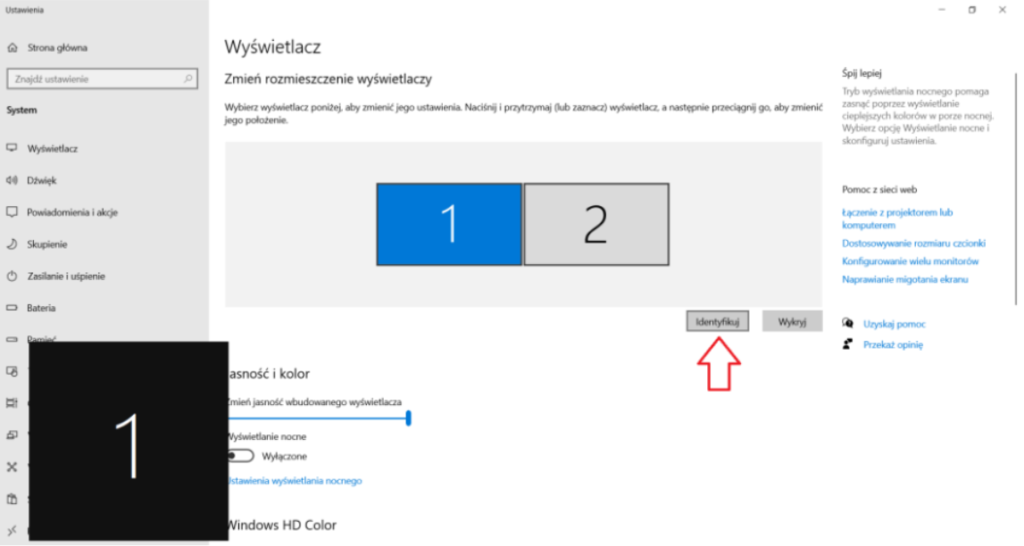
The last step is identifying and positioning your monitors correctly. Clicking the
“Identify” button will display the corresponding number on each monitor.
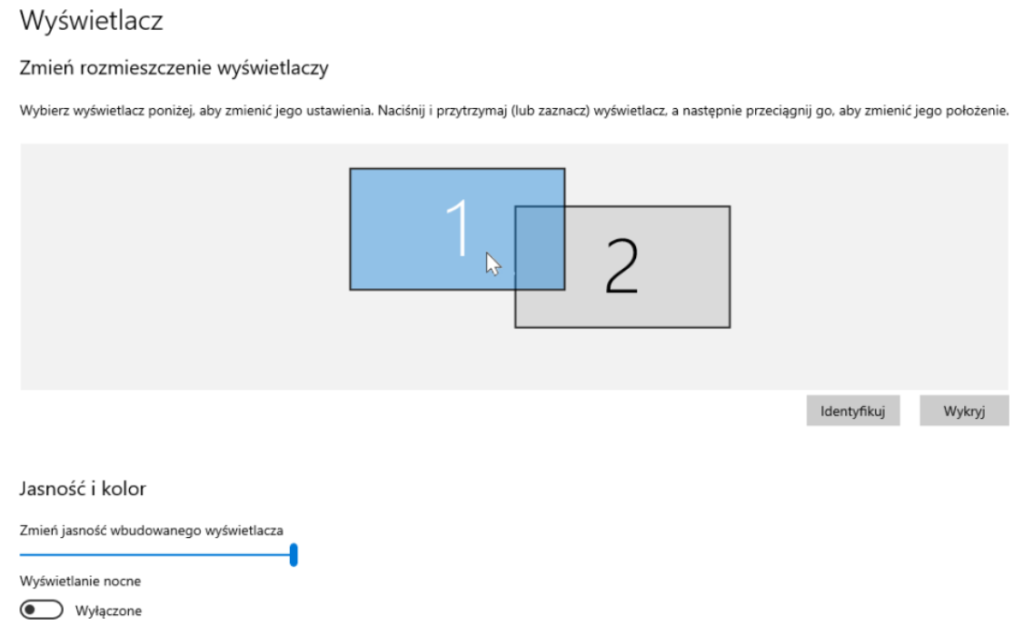
By clicking and dragging a “monitor” icon, you can move it to match the actual
physical position of your monitor. Besides the basic left-right arrangement, you can
also place displays above or below each other and adjust their height.

Remember to select “Make this my main display” on your primary monitor, as shown
above. This is where all your icons and the lock screen will appear.